
Adding categories
Adding categories
This page is used to create a new category where products will be placed. Categories help structure the catalog and make navigation easier for users.
To add new categories, go to the admin panel, select Categories from the sidebar menu, and the Categories page will open.
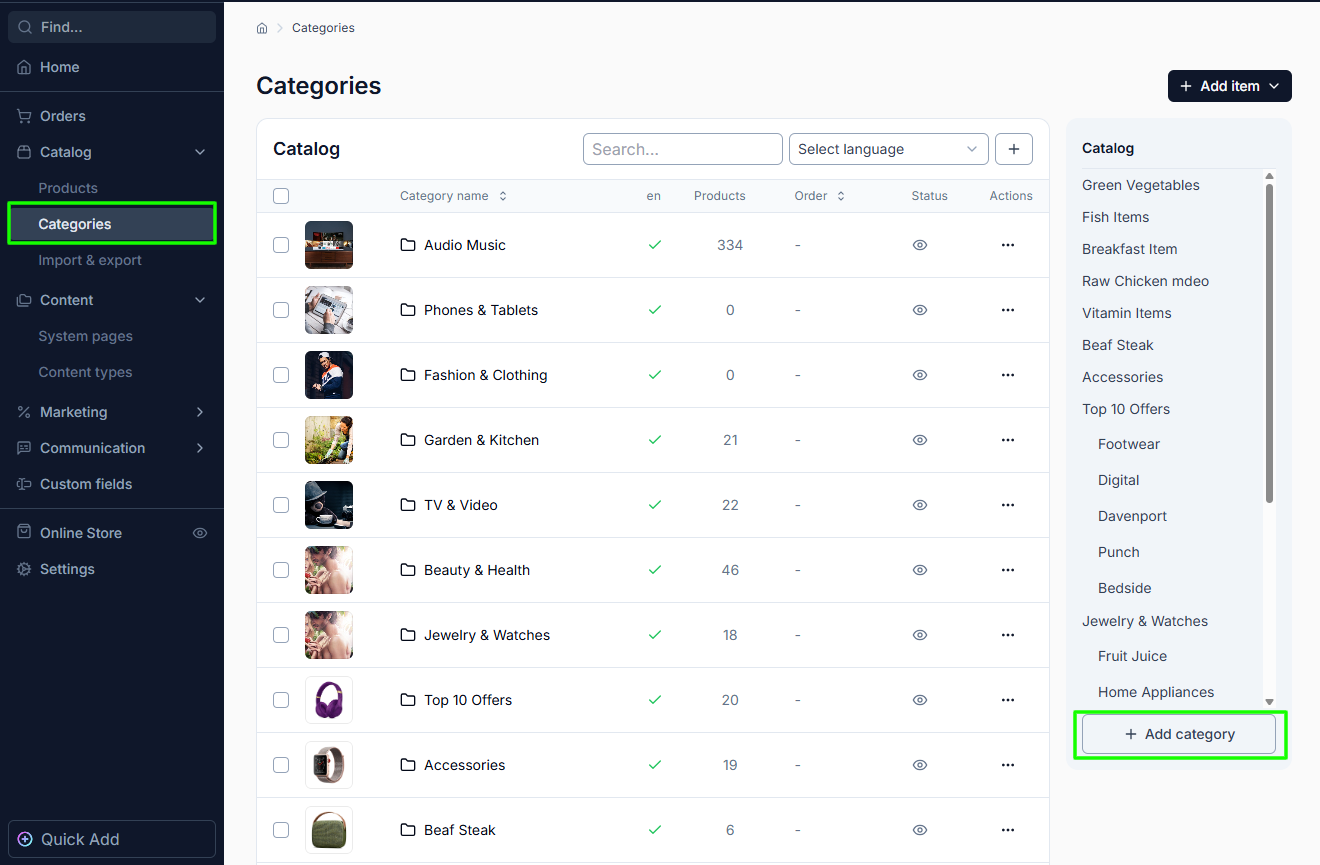
Click +Add category to open the page for creating a new category.
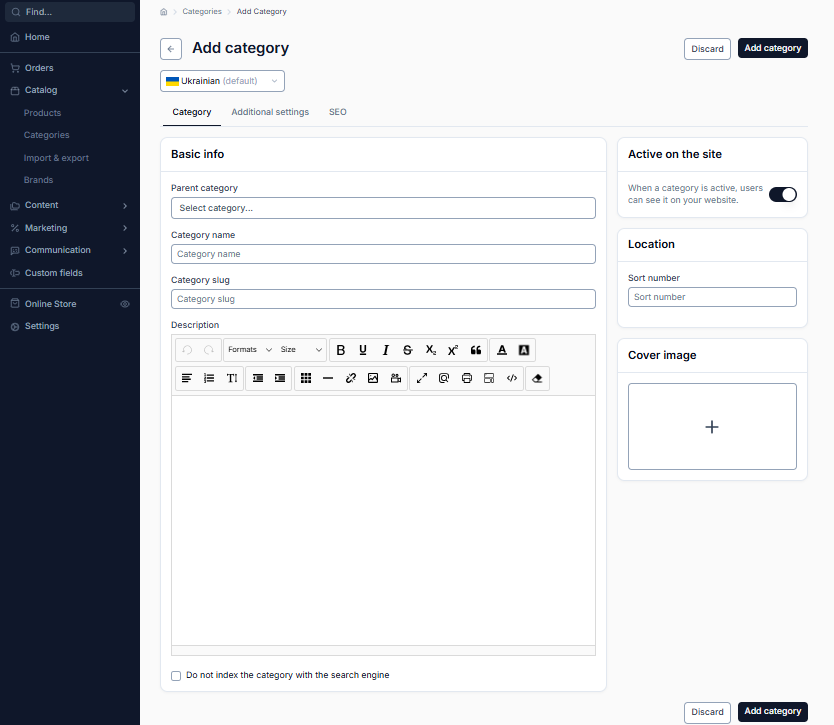
The page contains the following tabs:
Category — basic information.
Additional settings — additional fields and options.
SEO — fields for entering SEO metadata: title, meta description, and keywords.

Categories are the foundation of your catalog, so we recommend always adding a description and an image — this improves usability and SEO.
Category Tab
This tab is used to enter the basic information about a category.
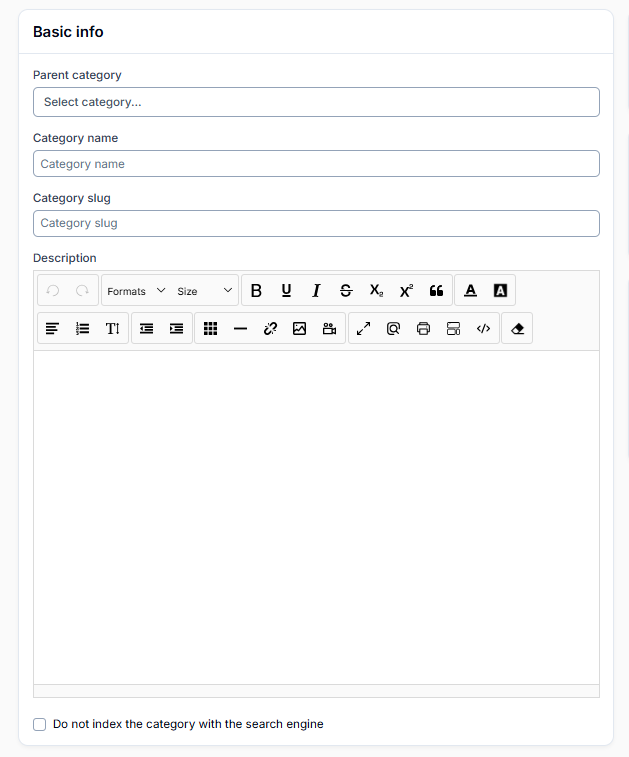
"Basic info" Section
Parent category — select a parent category if the new category is a subcategory. For example, "Clothing" → "T-shirts".
Category name — the category name that will be displayed on the website.
Category slug — the category URL identifier (in Latin characters, without spaces). For example, tshirts.
Description — a text description of the category with formatting support.Use it for SEO, branding, or to explain what the category contains.
Do not index — when enabled, the category will not be indexed by search engines.
"Active on the site" Section
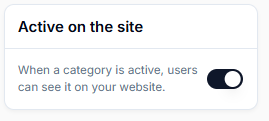
A toggle that determines whether the category is visible on the website. If disabled, the category remains in the system but is not displayed to customers.
"Location" Section
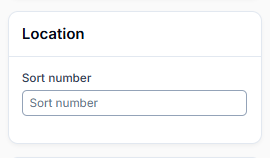
Sort number — the sorting order. The lower the value, the higher the category appears in lists.
"Cover image" Section
The category cover image is the main image displayed in the storefront or category lists.

Buttons

Discard — discard changes.
Add category — save and add a new category.
Additional settings Tab
Category in Menu Image View
Add item to menu is a toggle that determines whether the category is displayed in the category section with cover images and 5 subcategories. When enabled, the category is displayed in this section.

Category Menu View
Add to Menu Category View is a toggle that determines whether the category is displayed in the main menu under the "Categories" group, which is used to display selected categories on the website.

SEO Tab
The SEO tab allows you to configure search engine optimization both for the category itself and for the items (products) it contains. This helps improve the visibility of categories and products in search results on Google, Bing, and other search engines. It contains the following fields that affect how the category page appears in search engine results:
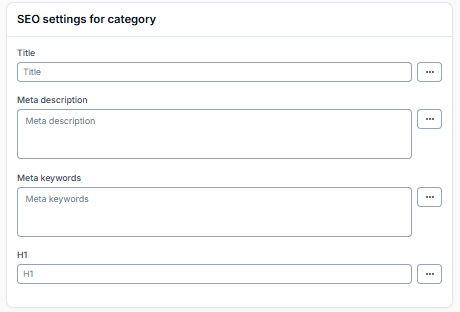
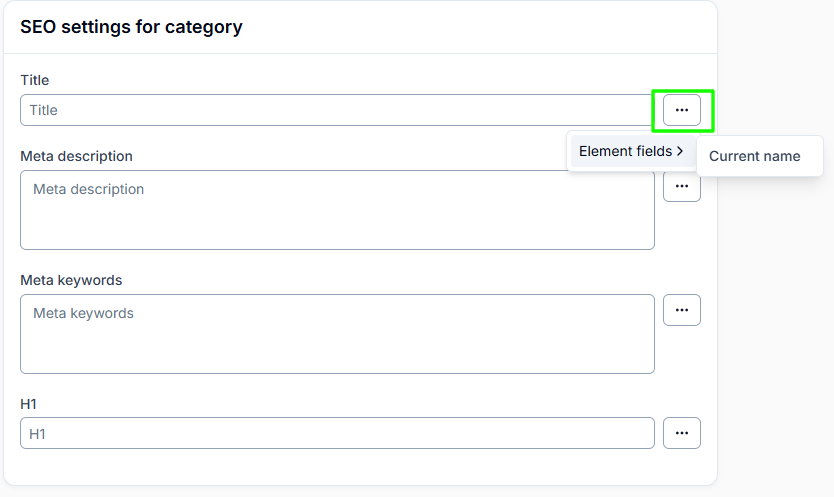
You can use placeholder variables in the format {name} in the text. They are automatically replaced with the corresponding values when processed.
For example, {name} will be replaced with the product name.
Title
The category page title displayed in the browser tab and in search engine results. It is recommended to keep it under 60 characters.
Meta description
A short description of the category displayed to users in search results. The optimal length is 150–160 characters. It should encourage users to visit the page.
Meta keywords
A comma-separated list of keywords describing the category content. This is not essential for modern SEO but may be used by internal search modules.
H1 heading
The main heading displayed on the category page. It should be informative and include the target keyword.
Each field has an Open menu button, which allows you to apply a template for automatic filling and select variables (for example, the category name, parent category, etc.).
SEO settings for elements
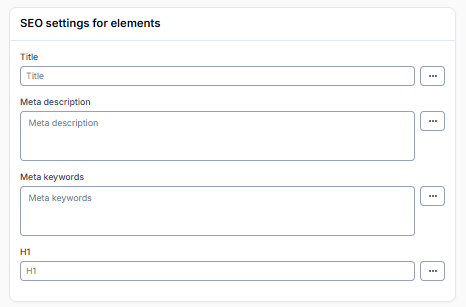
These fields are applied to products within this category if they do not have their own SEO data specified.
Title / Title. A title template for products.
Meta description / Meta description. A description template for products in this category.
Meta keywords / Meta keywords. A keyword template for products.
H1 / H1 heading. A main H1 template for product pages.
These templates allow you to manage product SEO content centrally, improving the speed and efficiency of optimizing large catalogs.