
Add product
Add product
To add a new product, navigate to the Products section.
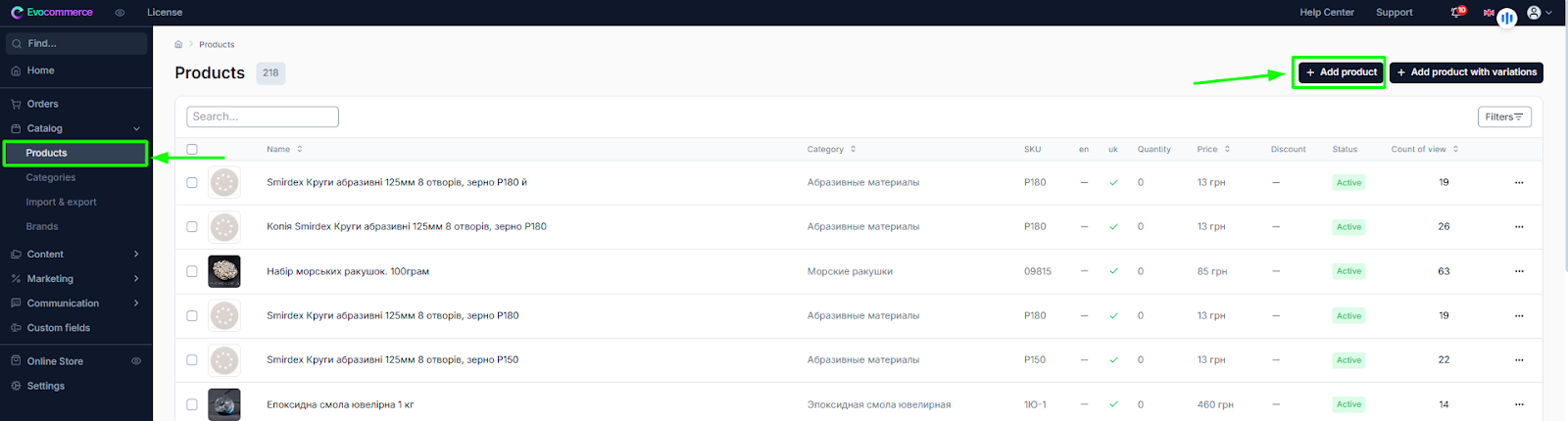
The Products page will open. Click the +Add product button. The system will then redirect you to the product creation page.
The "Add product" page in Evocommerce allows you to add a new product to your online store catalog. The page contains the following tabs: Product, Additional settings, and SEO. In this section, you will learn:
How to add a new product.
How to fill in the basic information.
How to upload images.
How to specify dimensions, price, category, and brand.
How to activate a product, set attributes, and add SEO information.
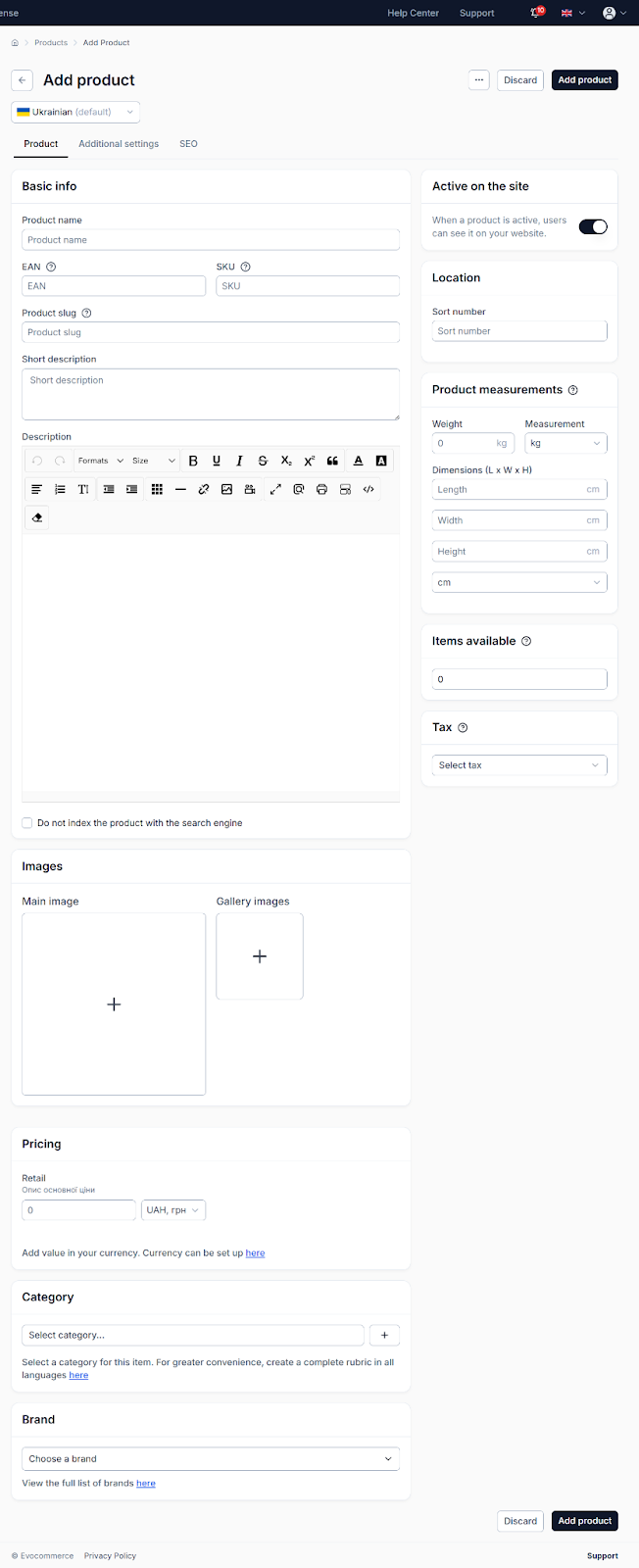
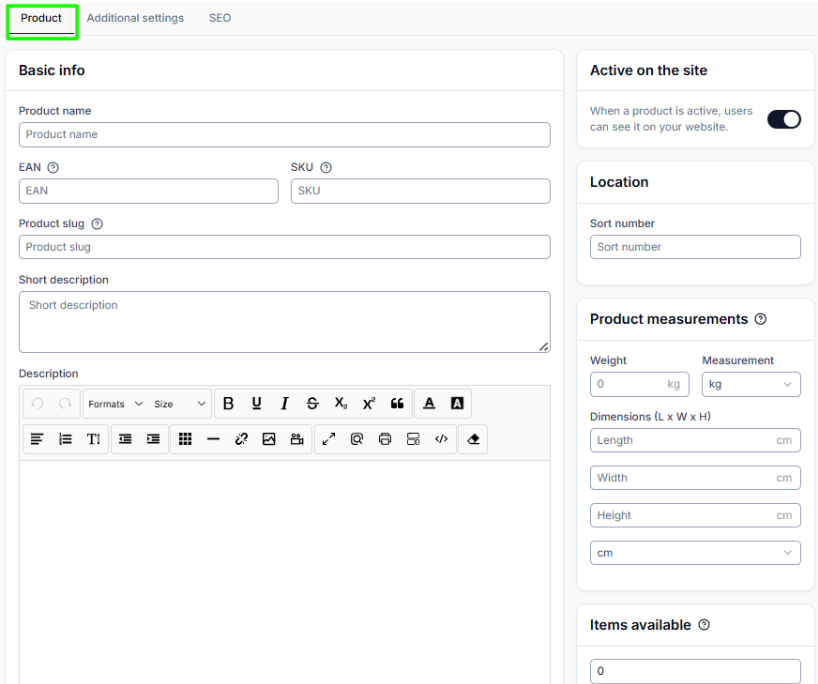
Product Tab
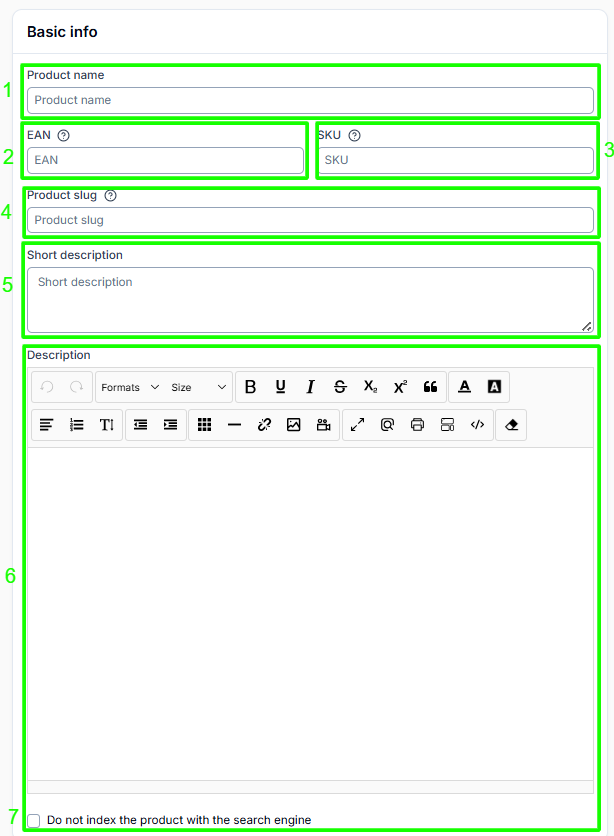
Basic info
This tab contains the key product information displayed on the website, in product listings, and on the product detail page. Important: this is the essential information required for a product to be displayed correctly in the store. The following fields are available:
Product name – Required field. The name displayed on the website.
EAN – International product barcode (optional).
SKU – Unique product code used for internal inventory management.
Product slug – Short URL
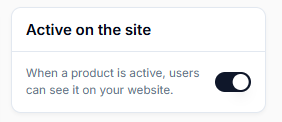
Active on the site
A toggle that determines whether the product is visible on the website. When enabled, the product is available to customers.
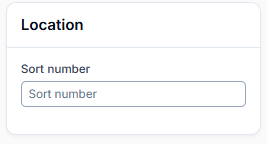
Location
Sort number – Determines the product's position in listings (in ascending order).
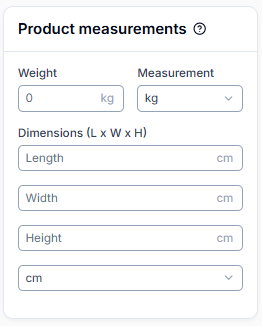
Product measurements
Weight – Product weight in kilograms (kg).
Dimensions (L x W x H) – Length, width, and height in the selected unit of measurement (cm, mm, etc.).
These values are used to calculate shipping costs (usually required by the carrier).
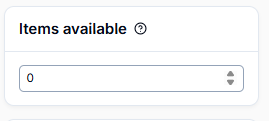
Items available
Specifies the number of product units available in stock.
If the specified quantity is "0", customers will not be able to add the product to the cart (this works if the corresponding option is enabled in the cart settings).
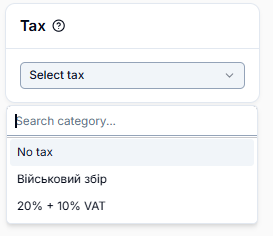
Tax
Select the tax applied to the product, which affects its final price (for example, 0%, military levy, VAT 20% + 10%, etc.).
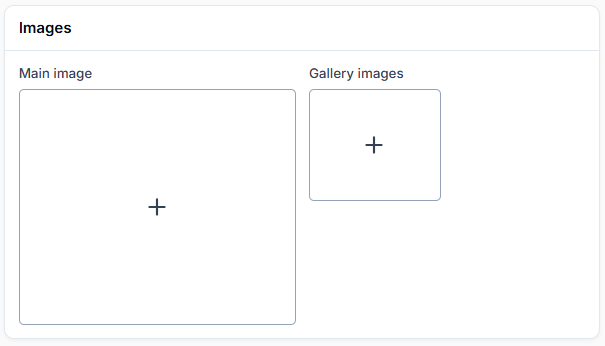
Images
Main image – The primary product image, displayed first.
Gallery images – Additional product photos.
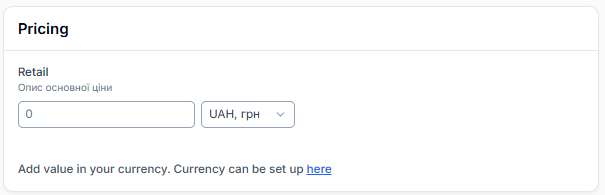
Pricing
Retail – The price of the product for customers. The currency depends on the store settings.
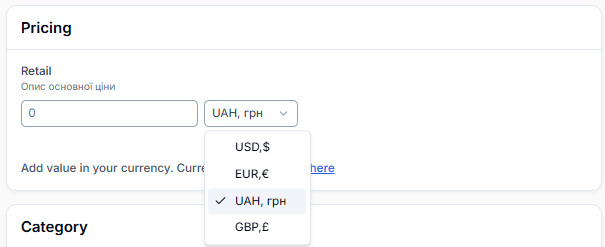
You can also select any available currency.
Category
Select the category to which the product belongs. You can create a new category or select one from the list.
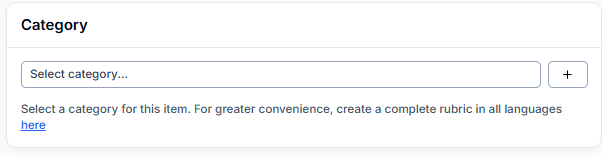
You can also enter category information directly from the product page by clicking the button below.
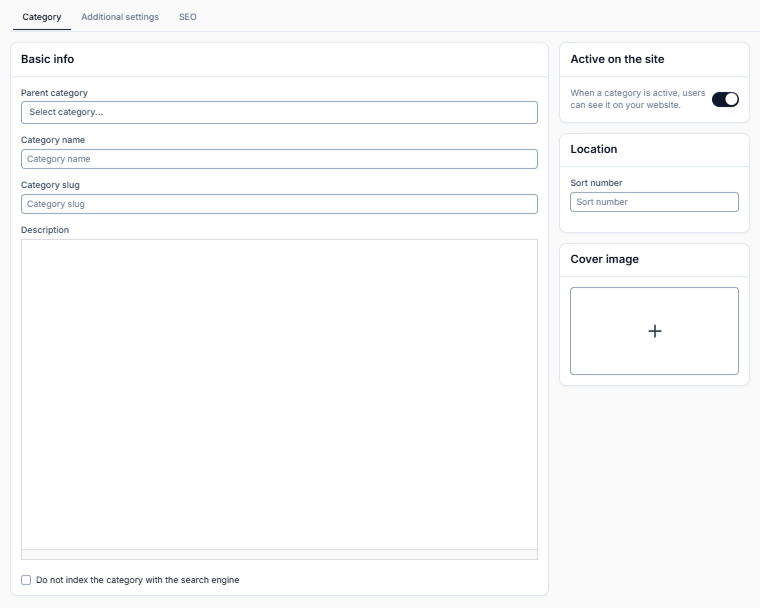
For more detailed information about filling in category details, see here.
Brand
Assign the product to an existing brand.
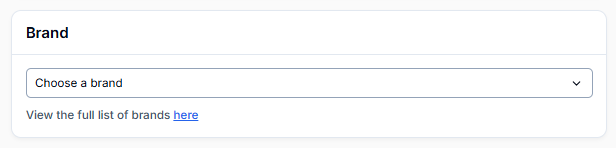
Use the content language switcher when adding product information
To add product information in another language, you must first enable that language in the general settings.

Additional settings Tab
This tab is used to create product characteristics that can be used for filtering products or selecting variations (for example, color, material, volume, finish, etc.).
Custom fields with values can be added.
Attributes can be displayed in filters, on the product page, or used to create product variations.
This is suitable for products with multiple options that are not separate SKUs.
Product attributes
Attribute fields that can be used for variations (for example, color or size).
Click + Add field to create a new attribute.
The search function becomes available when there are 10 or more values.
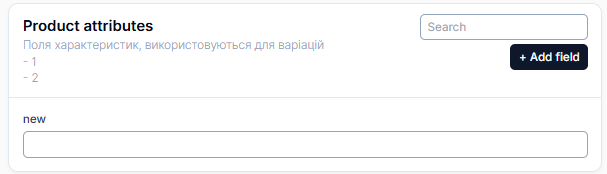
???? Note: attributes are mandatory for products with variations (for example, products available in several colors or sizes).
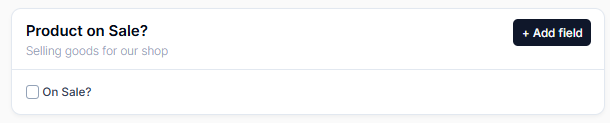
Product on Sale?
Enables the option indicating whether the product is included in the sale section.
Is Best Seller
Marks the product as popular or recommended.

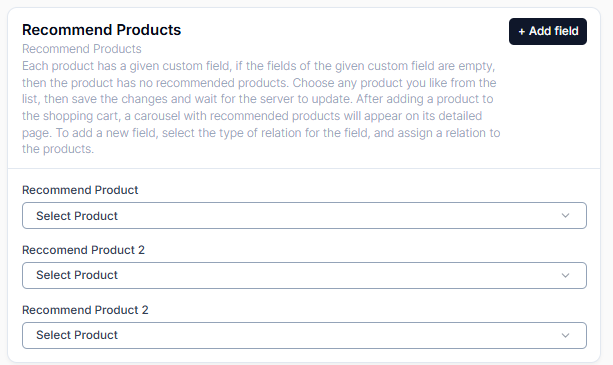
Recommend Products
Allows you to add up to 3 recommended products.
After saving, the recommended products will be displayed in a carousel on the product page.
Click + Add field to add a product association.
For each field (Recommend Product 1, 2), select a product from the list.
SEO Tab
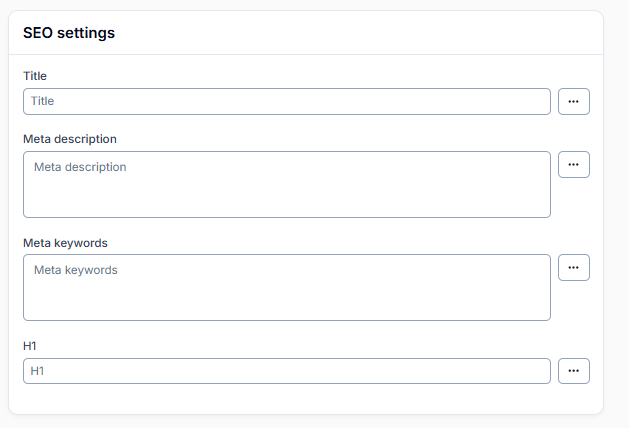
This tab is used to optimize the product for search engines by filling in the meta tags: title, description, keywords, and H1.
You can use variable placeholders in the text by clicking the button below.

, using the {name} format. These variables are automatically replaced with the corresponding values when the page is generated.
For example, {name} will be replaced with the product name.
After completing all tabs, click "Add product" to publish the product on your website.