
Import of products
Import of products
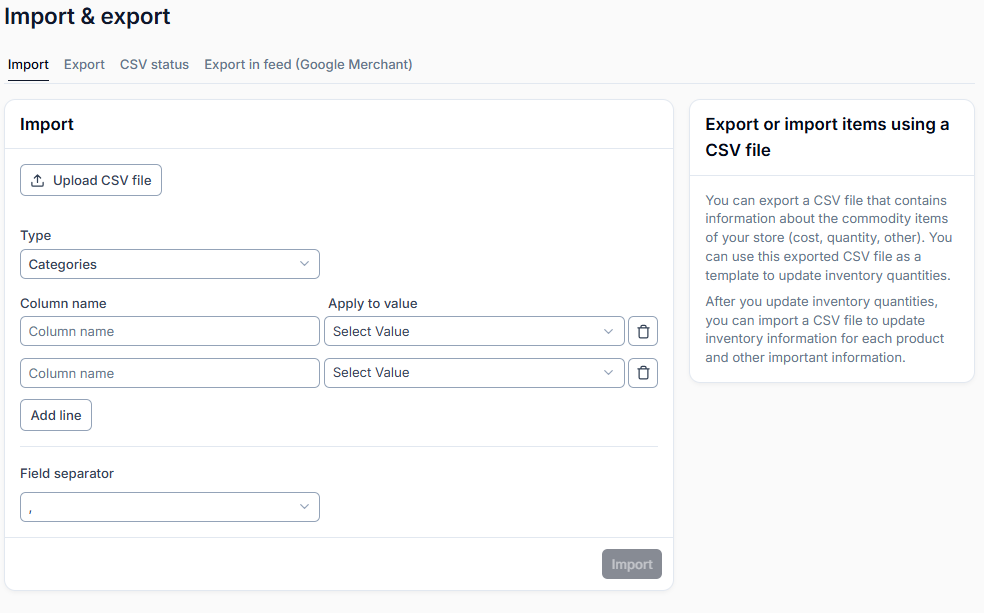
The Import & Export section is designed for importing, exporting, and synchronizing product data in CSV format. Users can update categories, products, inventory quantities, prices, and other fields, as well as generate feeds for external services such as Google Merchant.
Features:
Upload CSV file — upload a CSV file from your local device.
Type — select the type of entity to import (for example: Categories, Products, Inventory).
Column mapping — specify which CSV field corresponds to a particular value in the system:
Column name – the name of the column in the CSV file;
Apply to value – the internal system field to which the value is assigned. Includes the following values:
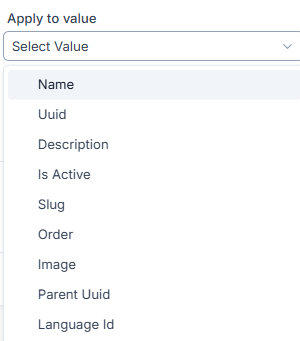
When importing a CSV file into Evocommerce, the Apply to value field is used to map CSV columns to specific properties of an entity (such as a category, product, etc.). This allows the system to correctly match values to the database structure.
Name | Name of the item (category, product, etc.). |
Uuid | Unique identifier (used to update existing records). |
Description | Description of the item. |
Is Active | Activation status (true or false). |
Slug | URL slug or text identifier (usually in Latin characters). |
Order | Sorting order of items. |
Image | Image URL or file path. |
Parent Uuid | Parent category identifier (for hierarchical structures). |
Language Id | Language localization of the item (language identifier, for example en, uk). |
To update existing records, you must specify the Uuid so that the system can identify which record to update instead of creating a new one.For the first import, it is recommended to export a sample of categories (using the Export tab) and use it as a template. For Boolean values (Is Active), use true / false or 1 / 0. The Image field supports only direct URLs or file paths within the server's directory structure, if supported.
Add line — adds a new column mapping rule.
Field separator — select the field delimiter used in the CSV file (for example, ,, ;, |).
Import — the button becomes active after all required fields have been completed.
An information panel explaining the import/export principles is located on the right-hand side.
Recommendations
Before importing, it is recommended to download a sample CSV file using Export, fill in the data, and use it as a template.