
Export of products
Export of products
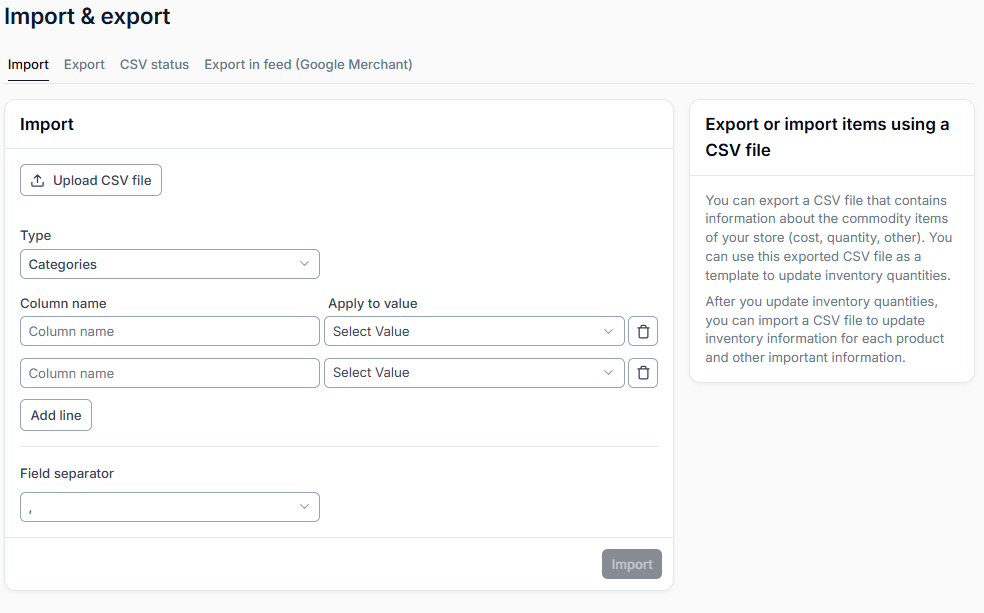
The Import & Export section is designed for importing, exporting, and synchronizing product data in CSV format. Users can update categories, products, quantities, prices, and other fields, as well as generate feeds for external services such as Google Merchant.
The Export to CSV tab contains the following fields:
What to export — select the type of data to export (e.g., Categories, Products).
Select category — specify the category to export (optional).
Field separator — select the field delimiter. The delimiter determines which character is used to separate values (columns) in the CSV file. Available options: , — comma (the standard option for most systems). ; — semicolon (often used in locales where a comma is used as the decimal separator, such as Ukrainian and German Excel locales). When opening the file in Microsoft Excel or Google Sheets, use ; if your system locale is Ukrainian or German. If you plan to process the file using software tools or import it into technical systems, use ,.
Quotes style — specify whether values should be enclosed in quotation marks (With / Without). This setting determines whether text values in the CSV file will be enclosed in double quotation marks ".Select With if your fields may contain delimiters or special characters (for example, a comma in a product name). Select Without if you are sure that the data is "clean" and you need the file in a simplified format.
Include nested elements — checkbox to specify whether nested elements should be included in the export.
Export — start the export process.
Recommendations
Always check the CSV file format. An incorrect delimiter or mismatched columns may cause an import error.